> ## Documentation Index
> Fetch the complete documentation index at: https://mintlify-han-update-changelogs.mintlify.site/llms.txt
> Use this file to discover all available pages before exploring further.
# Custom Domain
> Host the documentation at your website's custom subdomain
To set up your documentation on a custom subdomain, you'll need to set your desired custom subdomain in your Mintlify settings and configure your DNS settings on your domain provider.
Looking to set up a custom subdirectory domain like mintlify.com/docs? Find
instructions [here](/advanced/subpath/cloudflare).
## Dashboard Settings
1. Head over to your [dashboard project](https://dashboard.mintlify.com)
2. Click on the "Add custom subdomain".
3. Enter your desired custom subdomain. For example, `docs.mintlify.com`.

 ## Verification with Vercel
If Vercel happens to be your domain provider, you will have to add a verification `TXT` record. This information will show on your dashboard after submitting your custom subdomain, as well as be emailed to you.
## Configuring your DNS
1. Proceed to your domain's DNS settings on your domain provider.
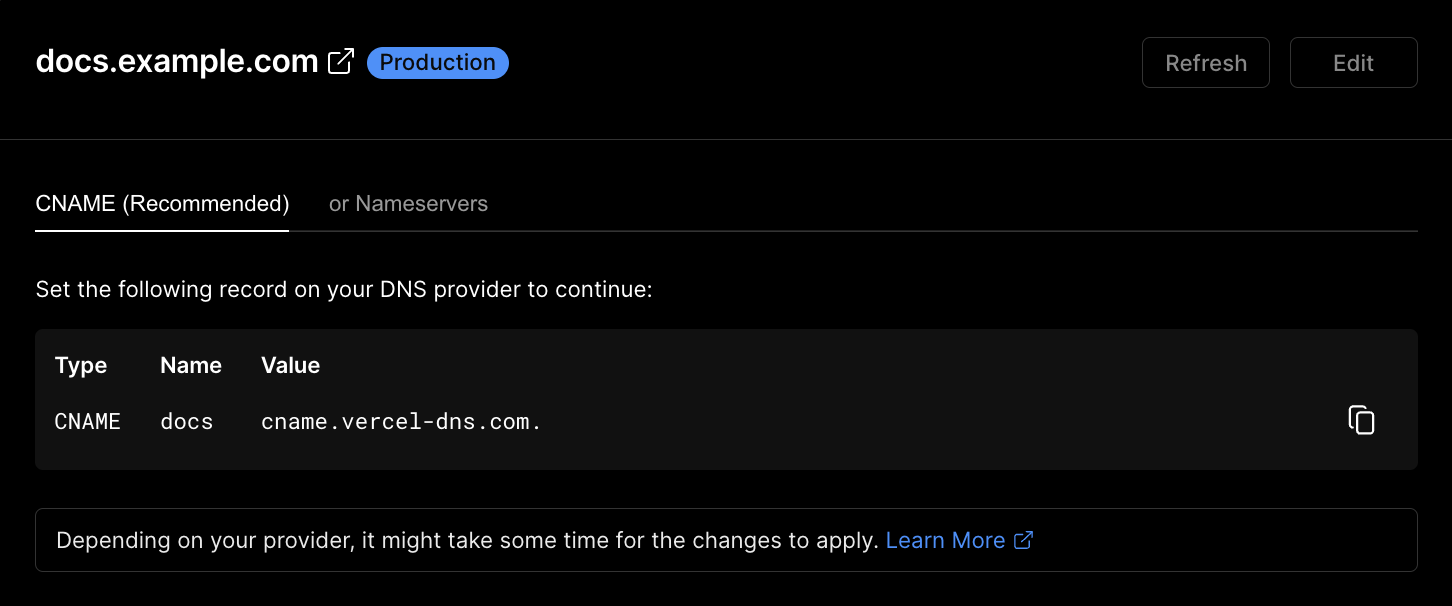
2. Create a new DNS entry, inputting the following values:
```
CNAME | docs | cname.vercel-dns.com.
```
## Verification with Vercel
If Vercel happens to be your domain provider, you will have to add a verification `TXT` record. This information will show on your dashboard after submitting your custom subdomain, as well as be emailed to you.
## Configuring your DNS
1. Proceed to your domain's DNS settings on your domain provider.
2. Create a new DNS entry, inputting the following values:
```
CNAME | docs | cname.vercel-dns.com.
```
 If you are using Cloudflare for your DNS provider, you'll need to have the “full strict” security option enabled for the https setting.
Please [contact support](mailto:sales@mintlify.com) if you don't see the custom subdomain set up after the above configuration.
If you are using Cloudflare for your DNS provider, you'll need to have the “full strict” security option enabled for the https setting.
Please [contact support](mailto:sales@mintlify.com) if you don't see the custom subdomain set up after the above configuration.